 Artisse
The AI Christmas Photo Trend: How to Make Yours Look Real
Published
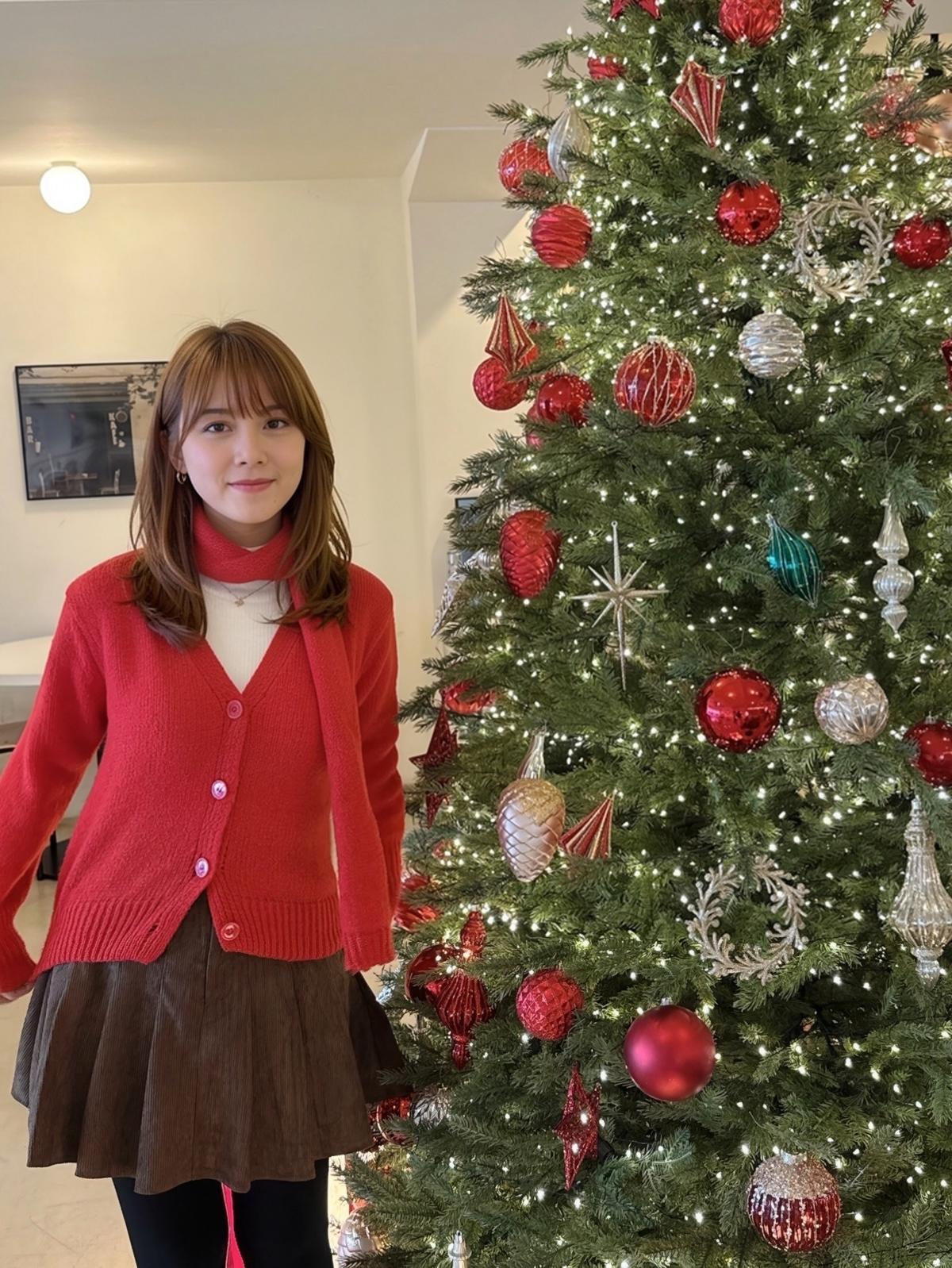
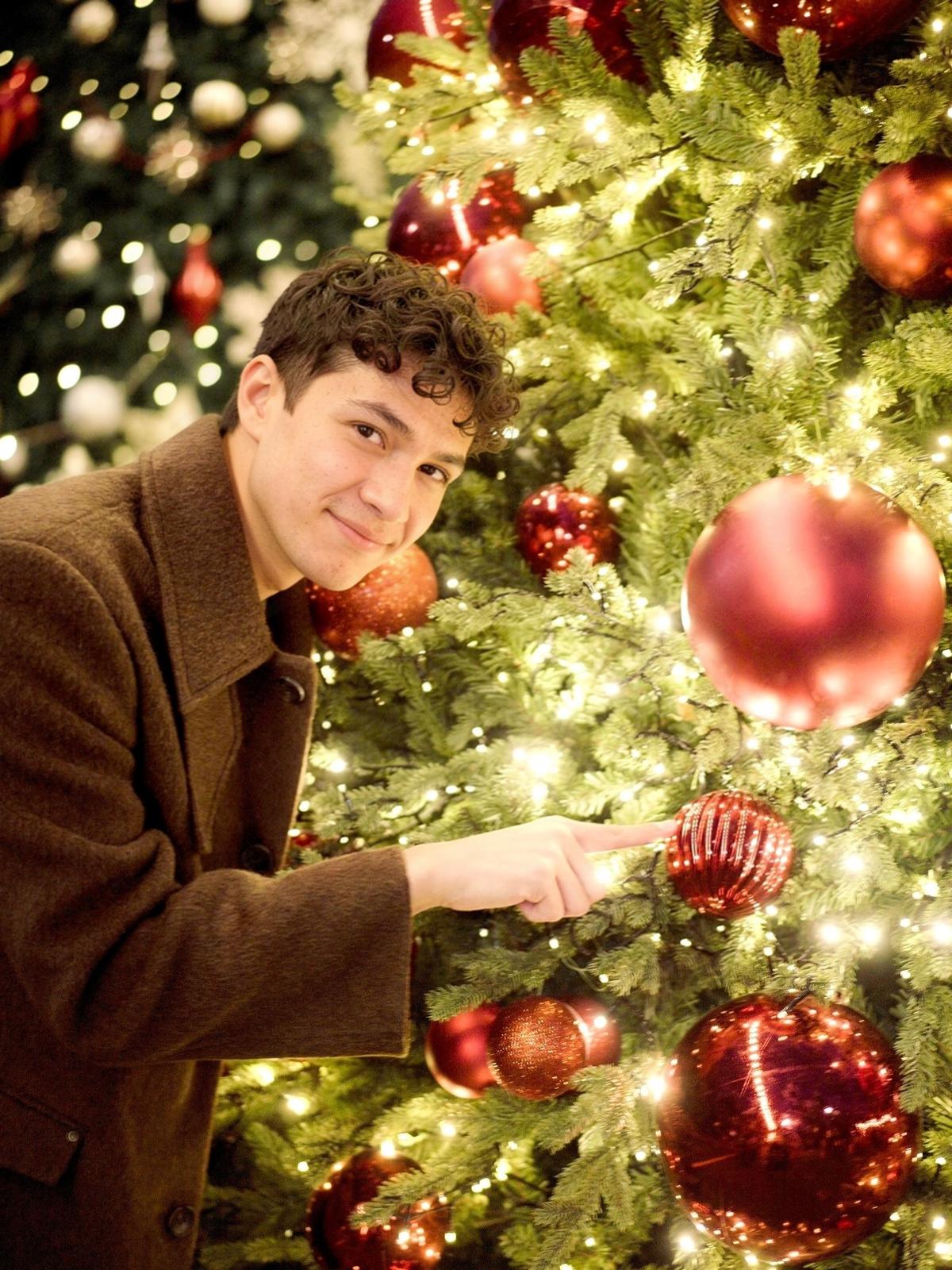
Your feed is filling up with friends by glowing trees in red knits, and some of those photos were made by AI from one selfie. The ones that give themselves away have waxy skin and light that comes from nowhere.
Here is how to make yours look as if it came off a friend's phone on a December day or evening, and what to check before you post it.
Why the fake-looking ones stand out
The people who see your post know your living room, your coat and roughly what your phone's photos look like. A photo of you by the tree in a hotel lobby you could have walked into gets asked "where is that?". One with studio light and poreless skin gets asked "is that AI?", and then the comments are about the tool instead of you.
Prompts passed around with the trend often ask for an "ultra-realistic 8K" portrait and name a camera lens. That wording describes a studio shoot, so a studio shoot is what tends to come back, with even light and skin smoothed like plastic. December on a phone looks nothing like it.
Five steps, from the scene to the post
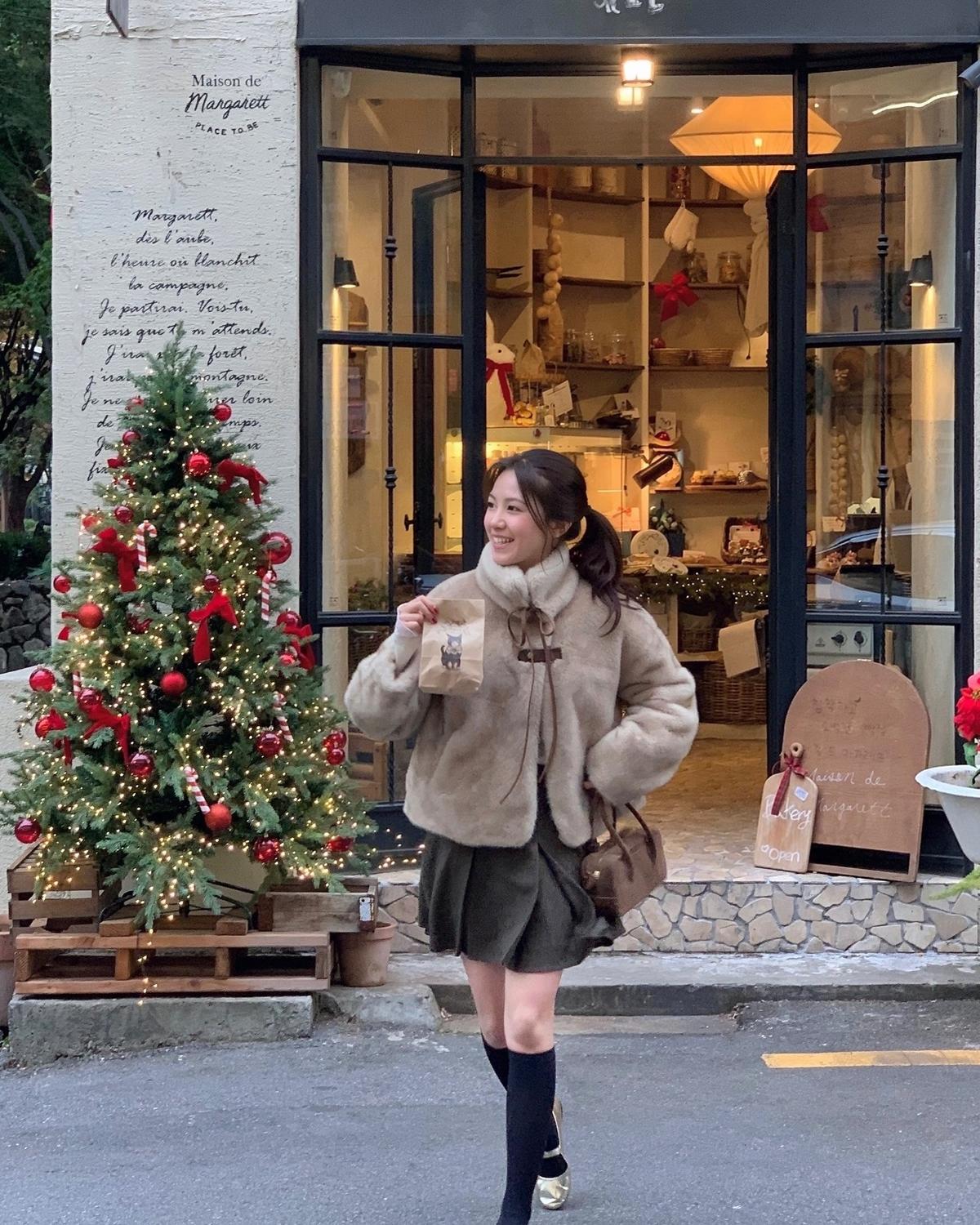
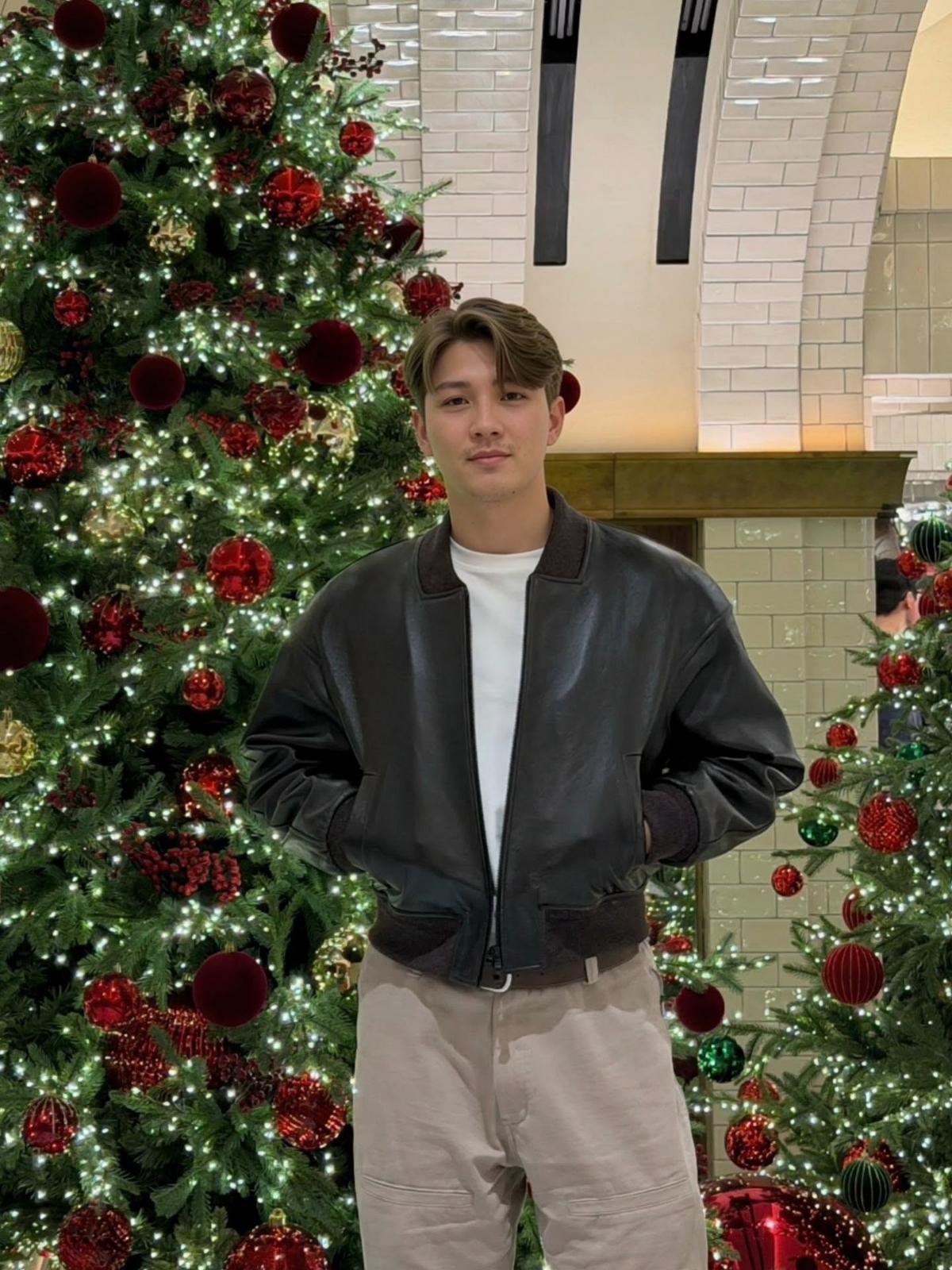
Pick a scene you could really be in
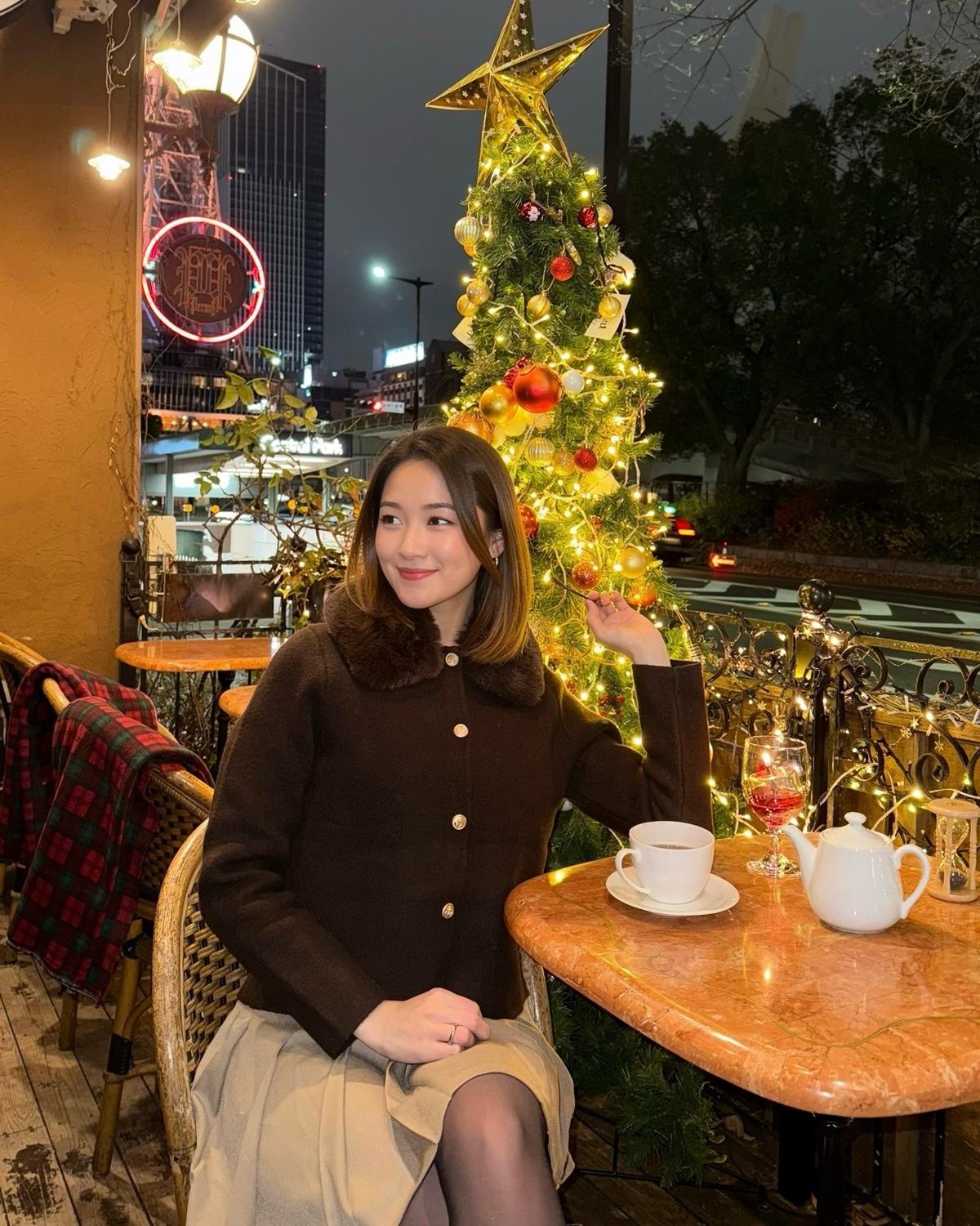
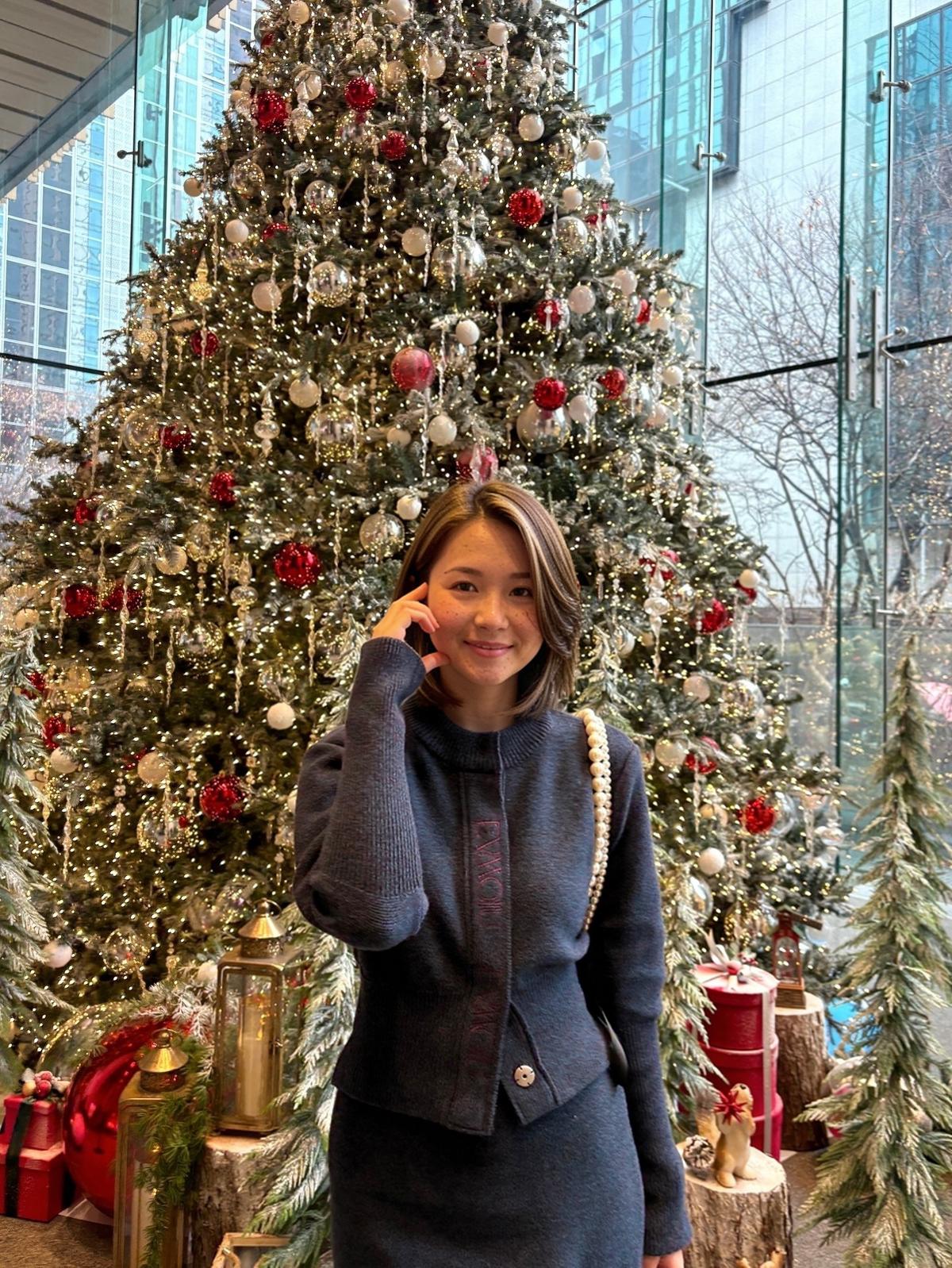
Start with the place, because it decides the light and the clothes. A decorated tree in a hotel lobby, a shop doorway on your street, a café with lights over the tables, your own sofa. Each is somewhere you might be on a Saturday in December.
Skip the snowy log cabin if it never snows where you live, and the grand staircase unless you know one. A modest scene that fits your life convinces more people than a spectacular one that doesn't.
Choose daylight or the tree's own lights
Two kinds of Christmas light look real on a phone. Daylight from a window gives true colours and soft shadows. At night, the warm bulbs of a tree light one side of your face and turn the background into small gold dots.
A face lit evenly from the front in a dark room looks wrong. At night, the light on your face should come from the tree or a shop window in the photo.

Wear something you'd wear that week
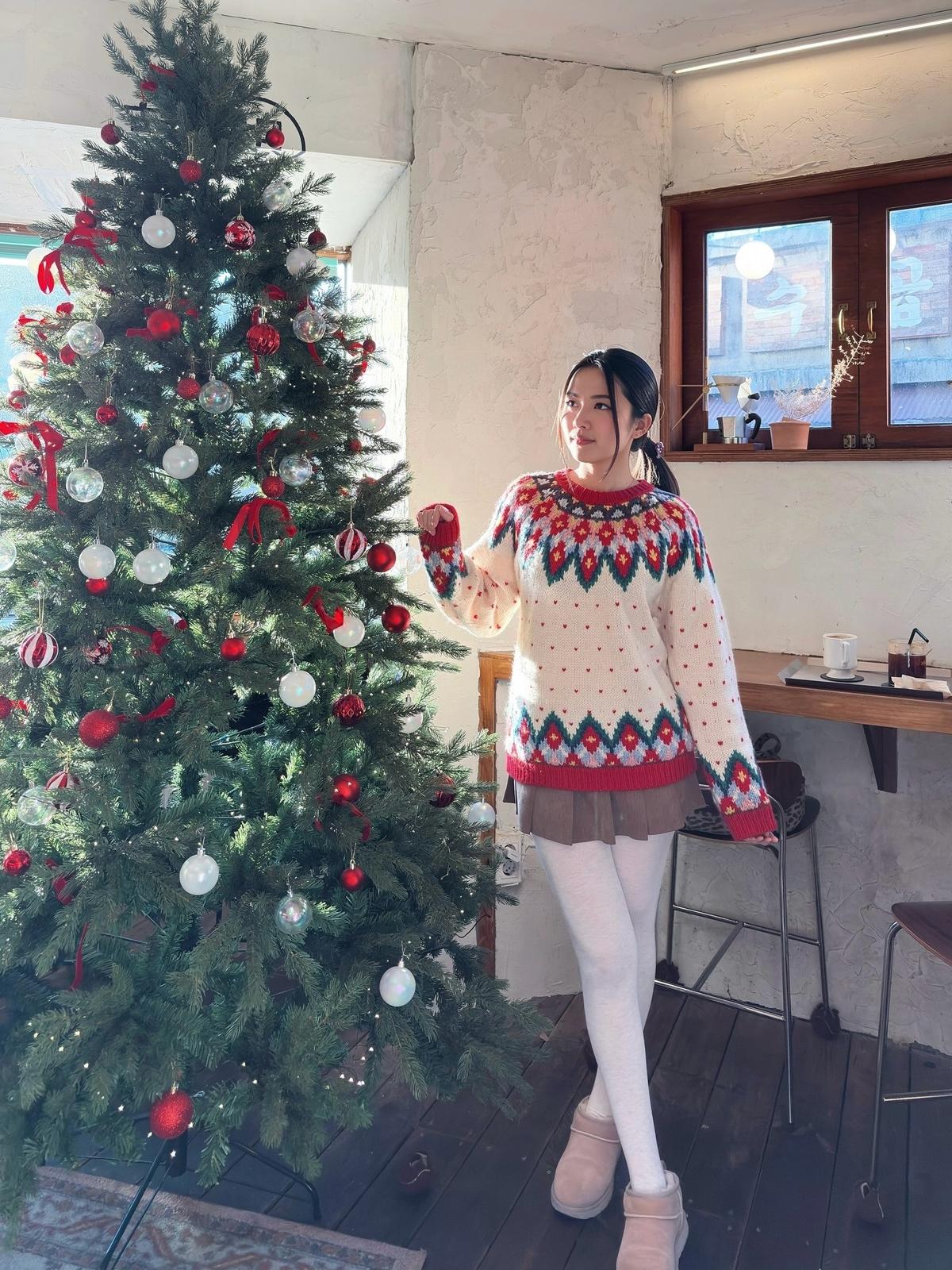
A red cardigan, a knit with reindeer on it, a cream cable-knit or a dark wool coat all say December without being a costume. A Santa hat with matching pyjamas says photo booth. That can be fun, but it makes the whole photo look staged.
Patterned knits are worth a second look in the result. The bands on a Fair Isle sweater should run straight around the body, and two reindeer should look like the same reindeer. When a pattern bends or smears, the eye catches it before anything else.

Start from a clear photo of your face
Whatever app you use, it can only learn your face from the photo you give it. Use a recent one taken facing a window, with your eyes easy to see and nothing on your head you don't normally wear. Hold the phone at eye level. Held low, it makes your jaw look heavier. Held high, it makes your forehead bigger.
Leave beauty filters off. A filtered face is smoother and narrower than yours, and the new photo copies that, which is the waxy look you're trying to avoid.
Check the details, then post two or three
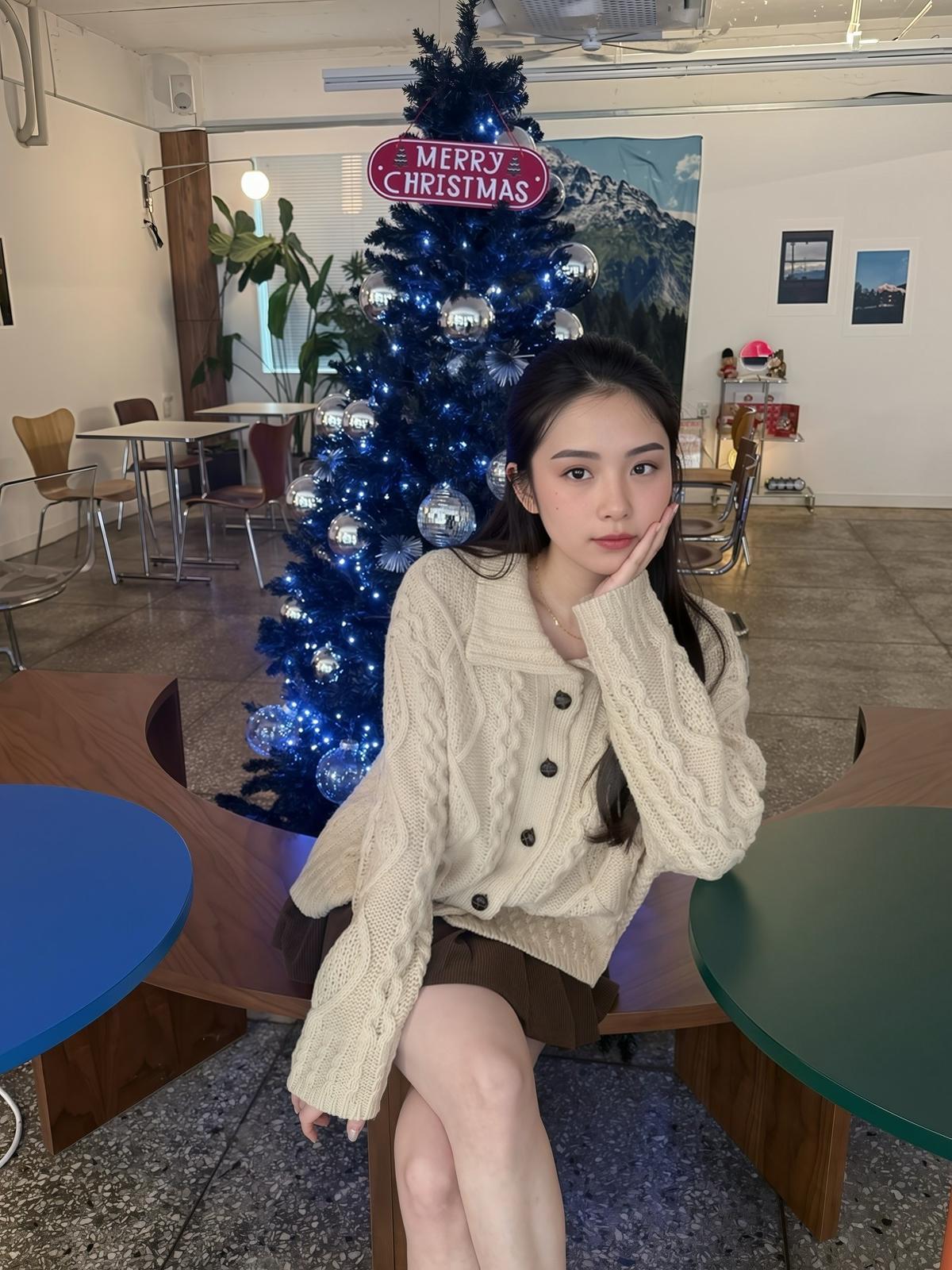
Before you post, zoom in on the hands and on any writing. Those are the parts that most often come out wrong. Count the fingers on every hand, and read every sign and sweater, because made-up letters are one of the quickest giveaways.
Then post a small set instead of one photo. Two or three from the same evening, say the lit trees in the square and the café after, read as a night out. A single flawless photo on its own reads as a test.
Which kind of photo to start from

A real doorway with garland, daylight, and a coat he'd wear to work.

A red backdrop and a Santa hat look like a studio set at first glance.
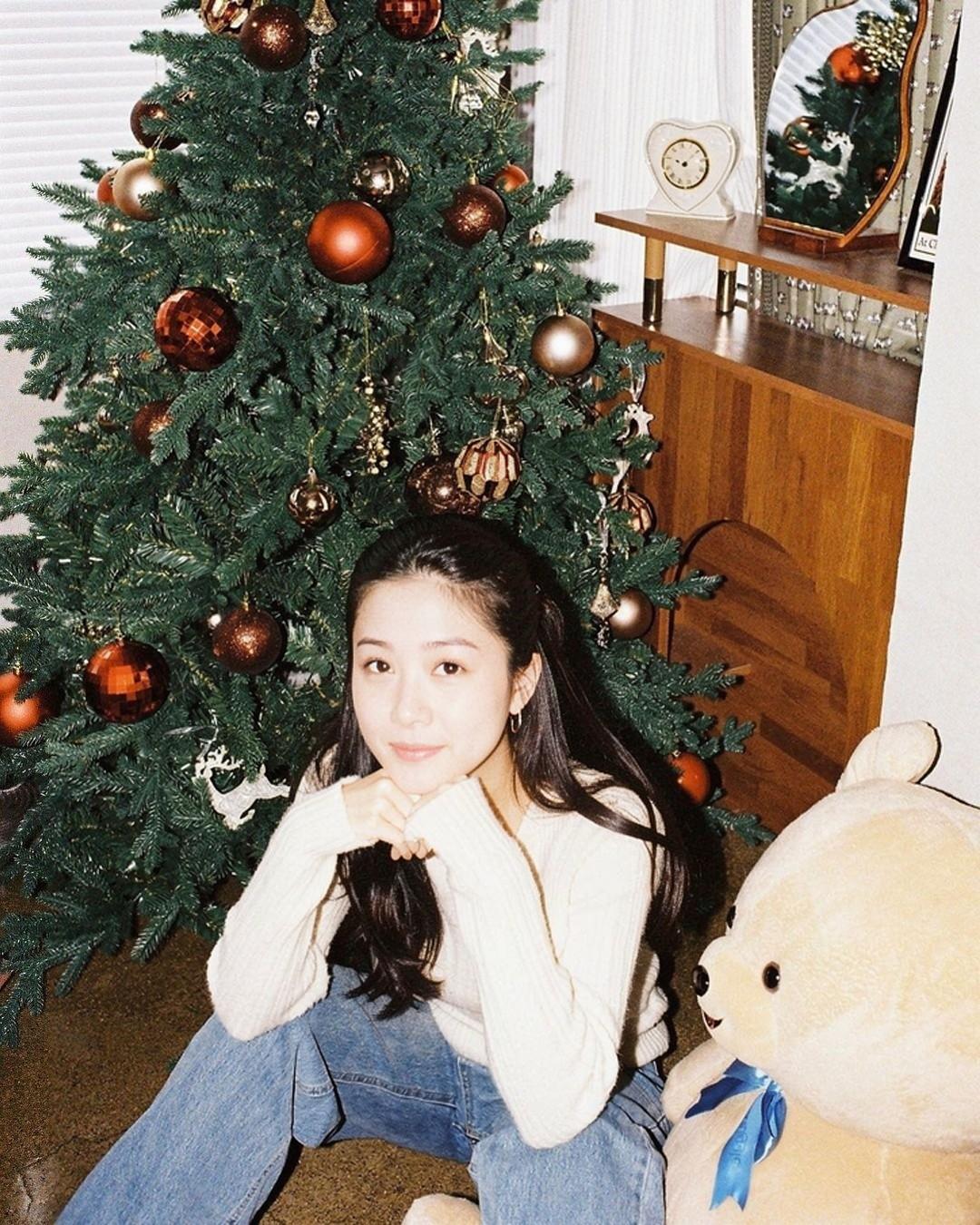
A tree at home and a cream sweater, the kind of photo a friend takes.

A novelty suit against a painted wall reads as a costume shoot.
By now you know the photo you want. It's set somewhere you could really be, and the light on your face comes from something in the scene. Getting that from a written prompt is the hard part, because every detail you leave out gets filled in with the glossy default.
Pointing at a photo of the scene is much easier than describing it.
Starting from a photo with Artisse
Artisse works that way round. You choose a Christmas photo you like, such as a lobby tree in daylight or a café at night, and add 1 photo of your face. In about 2 minutes, Artisse makes that photo again with you in it. The outfit, the place and the light come from the photo you chose, and the pose shifts a little so it looks like a new photo.
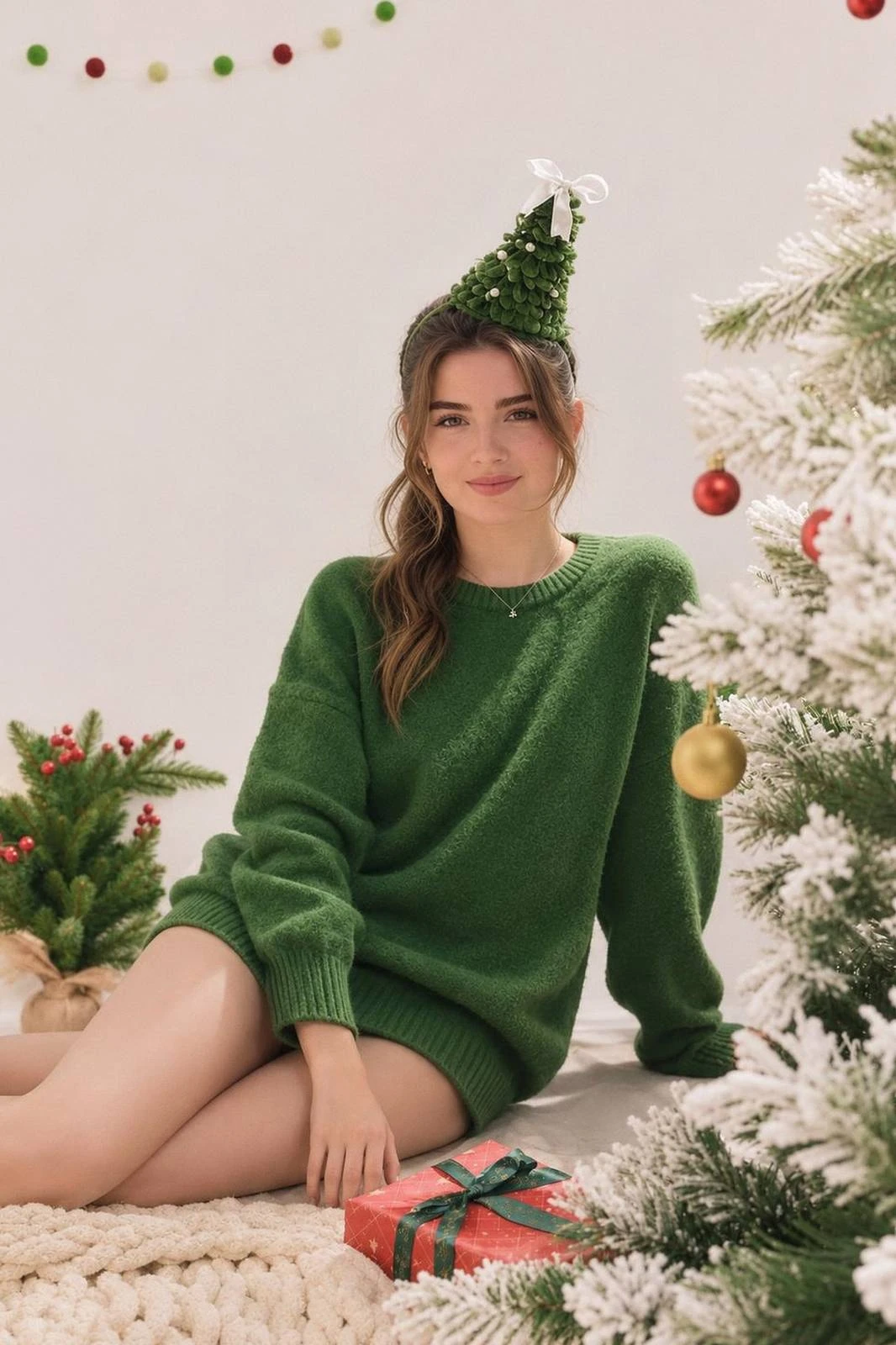

 A photo you likeYour face
That turns the five steps into a choice instead of a prompt. Pick a photo whose place fits your life and whose light comes from the tree or a window. There are more to choose from on the AI Christmas photos page.
One person per photo
Artisse makes photos of one person. It won't put your family around the tree or the two of you on a card, so a family card still needs everyone in one room and a phone on the timer. Small details such as hands and lettering can also come out different from the photo you chose, so the check in step five still applies.
Get Christmas photos of you by the tree, at a café table or out under the lights
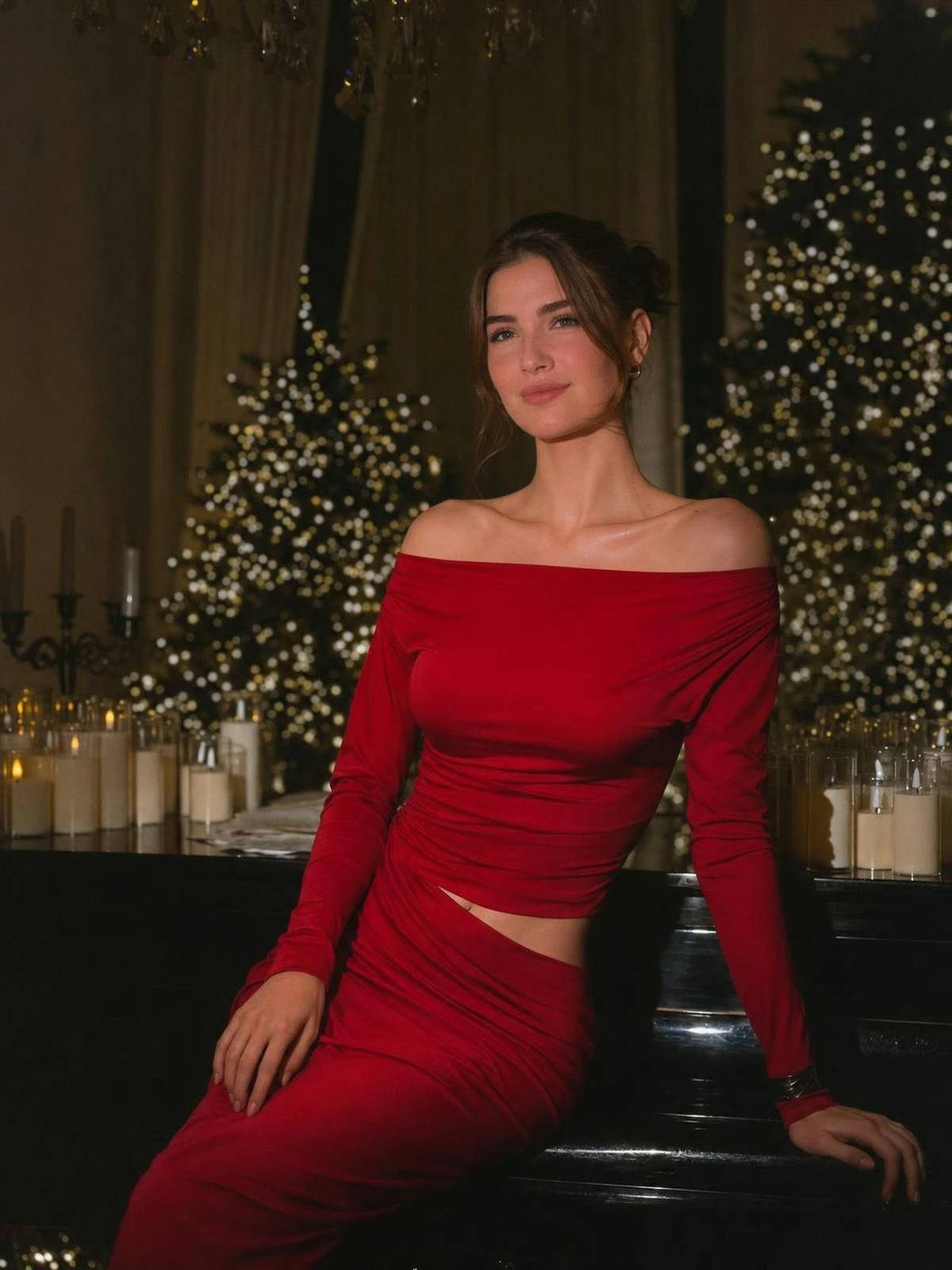
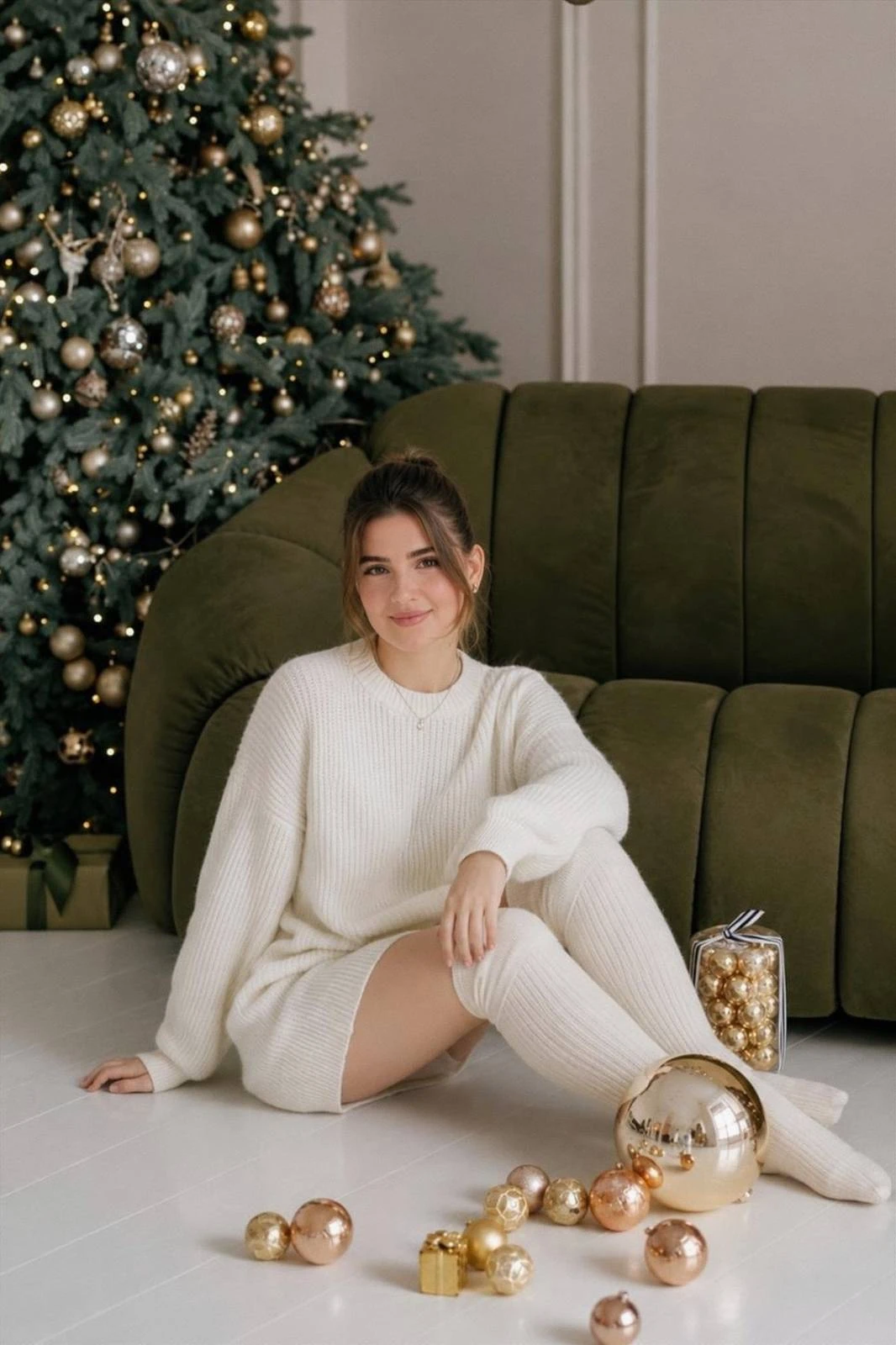
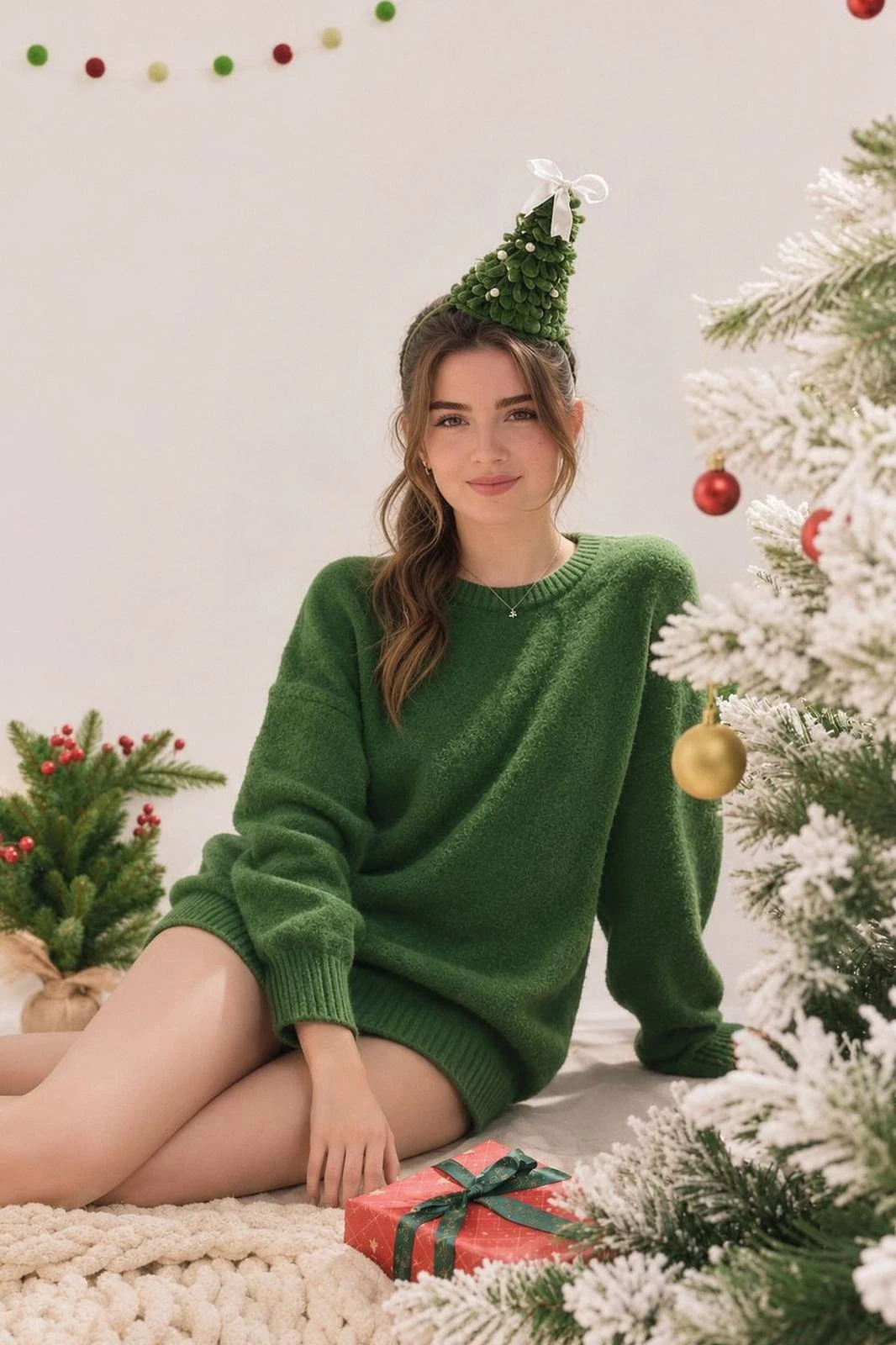
Add 1 photo of your face, then pick the Christmas photos you'd like to be in, like a lobby tree in daylight or a café lit by its tree at night.